


Your First Steps into AI Art: Generate Images with Python and Stable Diffusion XL (Free with a Local LLM!)
Author(s): Taha Azizi
Originally published on Towards AI.
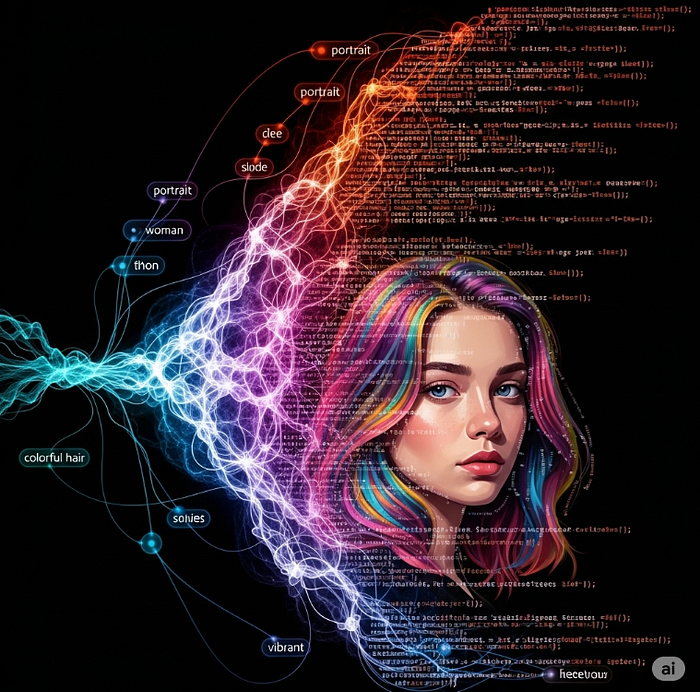
Imagine being able to create stunning images just by typing a few words. From vibrant landscapes to whimsical characters, the power of text-to-image generation is truly mind-blowing. And the best part? You can start building your own AI art studio today, right on your machine!

This article will walk you through setting up your first Python script to generate high-quality images using Stable Diffusion XL (SDXL). But we’re going to add an extra layer of cool: we’ll also show you how to leverage a local Large Language Model (LLM) like Gemma (via Ollama) to automatically generate intelligent, descriptive filenames for your creations.
No prior experience with AI art? No problem! If you’re comfortable with a little Python, you’re ready to dive in.
Why Stable Diffusion XL?
Stable Diffusion XL (SDXL) is one of the most powerful and widely used open-source text-to-image models available. It’s known for generating high-quality, aesthetically pleasing images with remarkable detail and coherence, especially compared to earlier versions. It’s a fantastic choice for beginners and experienced users alike due to its flexibility and the vast community support.
And Why a Local LLM for Filenames?
While you can manually name your generated images, integrating a local LLM like Gemma through Ollama adds a touch of automation and intelligence. It allows your script to “understand” the content of your prompt and suggest a descriptive, SEO-friendly filename. This is a neat trick that showcases the versatility of LLMs beyond just text generation.
What You’ll Need
Before we jump into the code, make sure you have the following set up:
- Python 3.8+: If you don’t have it, download it from python.org.
pip: Python's package installer (usually comes with Python).- A GPU (Recommended): While SDXL can run on a CPU, it will be significantly faster with an NVIDIA GPU. If you have one, ensure your drivers are up to date.
- Ollama: This is essential for running local LLMs. Follow the installation instructions on their official site: ollama.com. Once Ollama is installed, open your terminal and pull the Gemma model:
ollama pull gemma3:27b
Internet Connection: Needed to download models the first time.
Let’s Get Coding!
First, create a new Python file (e.g., ai_art_generator.py) and install the necessary libraries:
pip install torch diffusers transformers requests
Now, let’s break down the Python code step-by-step.
Python
import torch
from diffusers import StableDiffusionXLPipeline
import requests
import json

# --- 1. Set Up Your Computing Device ---
# Check if a GPU (CUDA) is available. If not, we'll use the CPU.
device = "cuda" if torch.cuda.is_available() else "cpu"
print(f"Using device: {device}")
# --- 2. Load the Stable Diffusion XL Model ---
# This is where the magic happens! We load the pre-trained SDXL model.
# 'stabilityai/stable-diffusion-xl-base-1.0' is the model ID.
# torch_dtype is set for performance: float16 for GPU, float32 for CPU.
# 'variant="fp16"' is for faster inference on compatible GPUs.
pipe = StableDiffusionXLPipeline.from_pretrained(
 "stabilityai/stable-diffusion-xl-base-1.0",
 torch_dtype=torch.float16 if device == "cuda" else torch.float32,
 variant="fp16"
)
# Move the model to your chosen device (GPU or CPU)
pipe = pipe.to(device)
# --- 3. Define Your Image Prompt ---
# This is the text description of the image you want to generate.
# Feel free to change this! Experiment with different ideas.
prompt = "Create a high quality image of a boy and her younger sister playing in a park, with a bright blue sky and green grass, capturing the joy and innocence of childhood."
# prompt = "A high-quality photo of Los Angeles, California, at sunset, with a clear sky and the city lights starting to twinkle."

# --- 4. Use Ollama to Generate an Intelligent Filename ---
# We'll use a local LLM (Gemma via Ollama) to suggest a filename.
ollama_url = "http://localhost:11434/api/generate" # Default Ollama API endpoint
ollama_payload = {
 "model": "gemma3:27b", # Ensure you've pulled this model with `ollama pull gemma3:27b`
 "temperature": 0.9, # Controls creativity (higher = more creative)
 "prompt": (
 "Your role is to create comprehensive, detailed filenames for images based on their descriptions. "
 "Follow these examples- description: A cat sitting on a windowsill during a rainy day.\n"
 "Filename: cat_on_windowsill_rainy_day_peaceful_scene\n"
 "Description: A futuristic city skyline at night with neon lights.\n"
 "Filename: futuristic_city_skyline_neon_night_lights\n"
 f"Description: {prompt}\n" # Injecting your image prompt here
 "Filename: " # The LLM will complete this line with the filename
 )
}
# Send the request to your local Ollama instance
response = requests.post(ollama_url, json=ollama_payload)
# Ollama streams responses, so we need to parse each line for the final response.
lines = response.text.strip().splitlines()
filename = "generated_image" # Default filename if Ollama fails
for line in lines:
 try:
 data = json.loads(line)
 if "response" in data:
 # Clean up the filename: replace spaces with underscores and remove non-alphanumeric chars
 filename = data["response"].strip().replace(" ", "_").lower()
 # Ensure it's valid for a filename
 filename = "".join(c for c in filename if c.isalnum() or c in ('_', '-'))
 break # Once we get the response, we can stop
 except json.JSONDecodeError:
 continue # Continue if a line isn't valid JSON
# Fallback: ensure filename is not empty and trim to a reasonable length
filename = filename[:60] if filename else "generated_image"

# --- 5. Generate the Image! ---
# Pass your text prompt to the loaded SDXL pipeline.
# '.images[0]' gets the first (and in this case, only) generated image.
image = pipe(prompt=prompt).images[0]
# --- 6. Save Your Masterpiece ---
# Save the generated image as a PNG file using the intelligent filename.
image.save(f"{filename}.png")
print(f"Image saved as {filename}.png")
How to Run Your Code
- Save the code as
ai_art_generator.py. - Open your terminal or command prompt.
- Navigate to the directory where you saved the file.
- Run the script:
python ai_art_generator.py
The first time you run it, the Stable Diffusion XL model will be downloaded, which can take a few minutes depending on your internet speed. Be patient! Once downloaded, subsequent runs will be much faster.
You’ll see messages indicating the model loading and then, after a short while (especially on GPU), you’ll find a new .png image file in the same directory as your script, named descriptively by Gemma!

Experiment and Explore!
This is just the beginning. Here are some ideas to take your AI art journey further:
- Change the
prompt: Be creative! Try different styles (e.g., "A watercolor painting of a whimsical forest," "A futuristic cityscape, cyberpunk style," "A close-up photo of a highly detailed mechanical owl"). The more descriptive you are, the better the results. - Add Negative Prompts: SDXL also supports
negative_promptwhich tells the model what not to include (e.g.,pipe(prompt, negative_prompt="ugly, deformed, blurry")). - Explore other
diffusersparameters: Thepipe()function has many more arguments likeguidance_scale(how closely the image follows the prompt),num_inference_steps(quality vs. speed), andseed(for reproducible results). Check the Diffusers documentation for more. - Try other local LLMs: Ollama supports many other models. Experiment with
llama3,mistral, or others for filename generation. - Build a Web UI: Once you’re comfortable, you could use frameworks like Streamlit or Gradio to create a simple web interface for your generator!
Conclusion
You’ve just taken a significant step into the world of generative AI! By combining the power of Stable Diffusion XL for image generation and a local LLM for intelligent automation, you’ve built a powerful tool that transforms text into visual art.
The possibilities are endless. What will you create next?
You can find the full code and project on my GitHub page: https://github.com/Taha-azizi/Imagen.git

— — — — — — — — — — — — — — — — — — — — — — — — — — — –
All images were generated by the author using AI tools.
Join thousands of data leaders on the AI newsletter. Join over 80,000 subscribers and keep up to date with the latest developments in AI. From research to projects and ideas. If you are building an AI startup, an AI-related product, or a service, we invite you to consider becoming a sponsor.
Published via Towards AI
Towards AI Academy
We Build Enterprise-Grade AI. We'll Teach You to Master It Too.
15 engineers. 100,000+ students. Towards AI Academy teaches what actually survives production.
Start free — no commitment:
→ 6-Day Agentic AI Engineering Email Guide — one practical lesson per day
→ Agents Architecture Cheatsheet — 3 years of architecture decisions in 6 pages
Our courses:
→ AI Engineering Certification — 90+ lessons from project selection to deployed product. The most comprehensive practical LLM course out there.
→ Agent Engineering Course — Hands on with production agent architectures, memory, routing, and eval frameworks — built from real enterprise engagements.
→ AI for Work — Understand, evaluate, and apply AI for complex work tasks.
Note: Article content contains the views of the contributing authors and not Towards AI.
Related posts
Recent Posts


